> ## Documentation Index
> Fetch the complete documentation index at: https://docs.openclawcode.ai/llms.txt
> Use this file to discover all available pages before exploring further.
# Quickstart
> Get your OpenClaw agent set up, connected, and running — no technical knowledge required.
## Get started in 3 steps
### 1. Download OCCode
Download for macOS (Apple Silicon & Intel).
Download the installer for Windows.
Linux support is coming soon. Follow the [GitHub repo](https://github.com/damoahdominic/occ) for updates.
### 2. Sign in
Launch the app — it opens a sign-in page in your browser automatically.
**Google** (one click, recommended) or **email + password**.
After signing in, the browser sends you back to OCCode automatically. Done.
Every new account gets **\$5.00 in free credits** — no credit card required.
### 3. Start using your agent
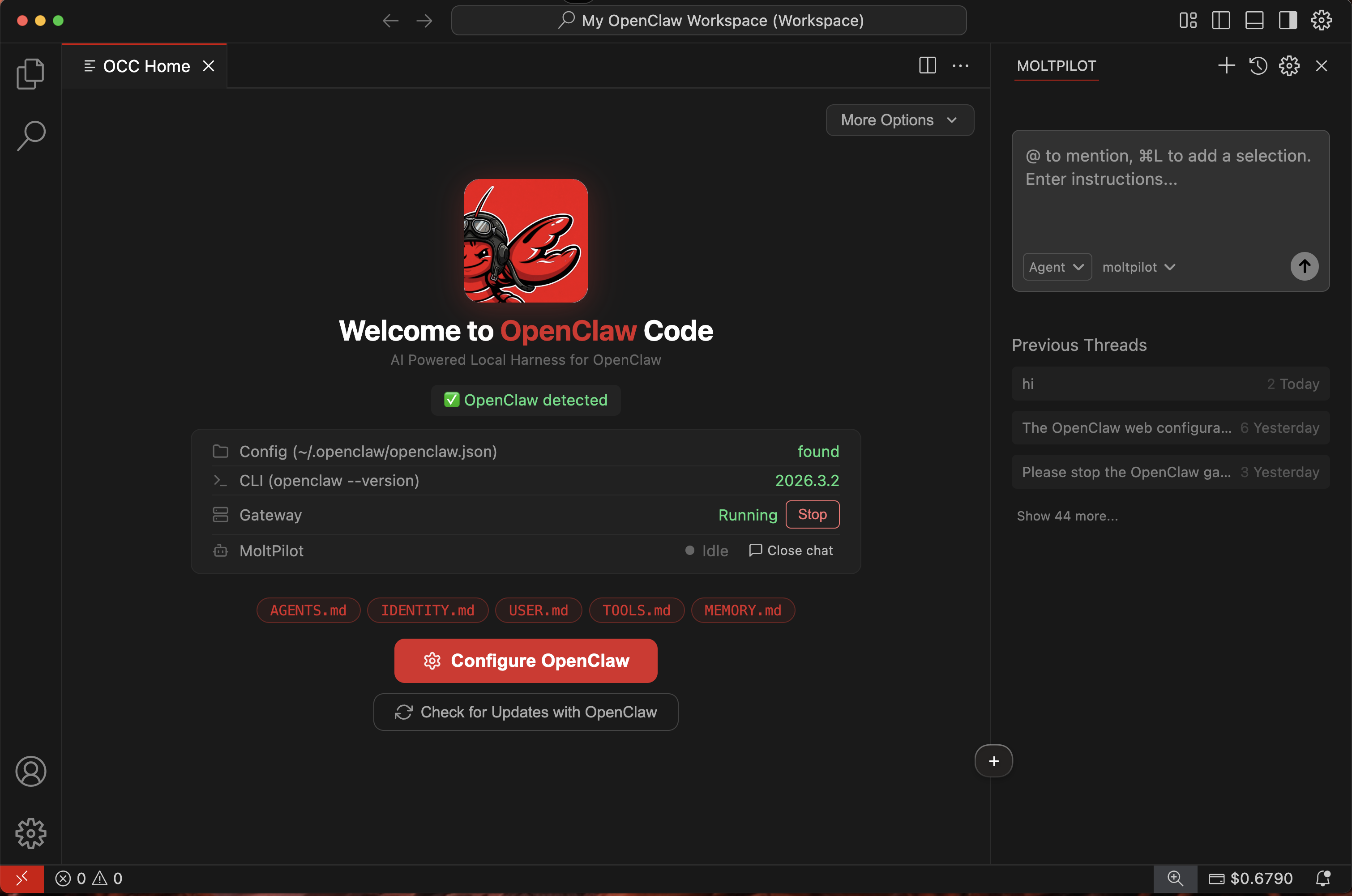
Once signed in, OCCode connects you to your OpenClaw agent:
* **Setup wizard** — follow the guided steps to configure your agent
* **Status panel** — see at a glance whether your agent is running
* **Troubleshooting** — if something goes wrong, OCCode helps you fix it
No terminal. No config files. Just follow the prompts.
 ***
## Your dashboard
Visit your [dashboard](https://occ.mba.sh/dashboard) anytime to:
See your current credit balance.
See every interaction and its cost.
Top up with $5 / $10 / $20 / $50.
***
## Next steps
Learn what happens behind the scenes when you use your agent.
Understand pricing and how credits work.
***
## Your dashboard
Visit your [dashboard](https://occ.mba.sh/dashboard) anytime to:
See your current credit balance.
See every interaction and its cost.
Top up with $5 / $10 / $20 / $50.
***
## Next steps
Learn what happens behind the scenes when you use your agent.
Understand pricing and how credits work.